
Why the source matters most
Almost every later safety check depends on where a program came from. A checksum only proves that your file matches the one the publisher listed, so it helps only if you found the real publisher. Operating system warnings are built around the same idea: they trust software more when it comes through a channel that has already checked it. Choosing the source is therefore the single decision that does the most work.
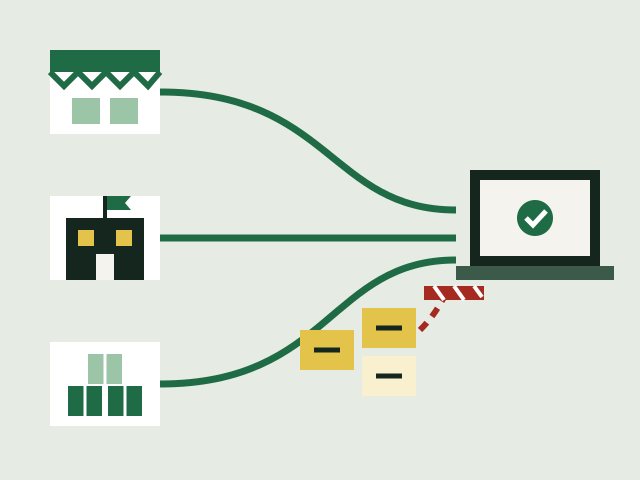
For ordinary users there are three good places to get software, in roughly this order of preference:
- the official app store for your device, when the program is offered there;
- a package manager that your operating system or Linux distribution provides;
- the maker's own website, reached by typing its address rather than by clicking an advert or a link in a message.
Package managers sit above vendor sites in that list because, as the section below explains, they check every package automatically. On a phone the store is usually the only route most people use. On a desktop computer all three are common.
Official app stores
Apple's support documentation describes the App Store as the safest place to get apps for a Mac. Apple says it reviews each app before accepting it and signs it so that it cannot be altered without detection, and that it can remove an app from the store if a problem appears later.
Apps from outside the Mac App Store are still checked. According to Apple's documentation, a technology called Gatekeeper checks that an app, plug-in or installer package downloaded from the internet carries a Developer ID signature from an identified developer and has not been changed. Since macOS Catalina, software must by default also be notarized, meaning Apple has checked it for known malicious software and found none. Before downloaded software opens for the first time, macOS asks you to confirm, so that you are not tricked into running a program you thought was a document.
On Android, Google documents a built-in service called Google Play Protect. It runs a safety check on apps in the Google Play Store before you download them, scans the device for potentially harmful apps from other sources, warns you about them, and may disable or remove them. Google says Play Protect is on by default and recommends keeping it on.
What a store does not promise
Review by a store lowers the risk; it does not remove it. Apple's and Google's documents describe checks for known malicious content and policy violations, not a guarantee that every app is harmless or well made. The other habits in these guides still apply to apps from a store.
The maker's own website
Plenty of software is not in any store, and the maker's own site is then the right place. The risk is not the vendor's site itself but reaching a fake one. CISA advises visiting vendor sites directly rather than clicking on advertisements or email links, and gives the same advice for software updates: only download them from trusted vendor websites, and do not trust a link in an email message. The FTC warns that scammers place bogus software adverts on social media and search engines, and says not to click on ads to download software but to type the website address yourself instead.
In practice that means:
- Find the maker's address from something you already trust, such as the program's own documentation, the box or receipt, your organisation's IT pages, or an address you have used before.
- Type it, or use a bookmark you made yourself. Search results can include adverts that look like ordinary results.
- On the download page, look for a published checksum or signature and note it before you download. The guide on hashes and signatures explains how to use it.
On a Mac, software from the maker's site should still pass Gatekeeper. On Windows, Microsoft Defender SmartScreen checks downloaded files against lists of reported malicious software and of files that are well known and commonly downloaded, and warns about anything that does not match. A warning on a file you got from what you believed was the maker's site is a reason to stop and recheck the address, not to click past.
Package managers
A package manager is a tool that finds, installs, upgrades and removes software for you from a set of sources that it knows about. It replaces the routine of searching the web, downloading an installer and clicking through it.
On Windows
Microsoft documents WinGet, the Windows Package Manager, as a command-line tool for discovering, installing, upgrading, removing and configuring applications on Windows 10, Windows 11 and Windows Server 2025. It is delivered as part of the App Installer component. A typical session looks like this:
winget search "name of the program"
winget install "name of the program"
winget upgrade "name of the program"
The value for safety is that the tool, not you, goes to the source, and the upgrade command later fetches new versions from that same source. Microsoft lists other commands too, including one that shows details of a program before you install it.
On Linux
Linux distributions have long been built around package managers, and the major ones sign their package lists. The Debian Administrator's Handbook explains how Debian's APT tool does it: the mirrors publish a signed file, InRelease, that lists the SHA-256 hashes of the package lists, and those lists in turn hold the hashes of every package. APT checks the signature with Debian's official keys, which come from a package called debian-archive-keyring, and checks the hashes before installing. A package altered by a third party on the way is therefore rejected.
sudo apt update
sudo apt install name-of-package
The practical lesson is to prefer the distribution's own packages, and to be careful about adding extra sources or keys from a web page. Each one you add becomes a source your system will trust in the same way.
Routes to avoid
The documents behind this guide agree on the risky routes:
- Search and social media adverts for software. The FTC names these specifically as a way scammers spread malware.
- Unfamiliar sites offering free downloads. The FTC advises against using unfamiliar websites to download free music, films, shows or games, and against downloading content through peer-to-peer file-sharing.
- "Free" copies of paid software. CISA notes that it is not uncommon for free software to contain a Trojan horse: a program that looks legitimate while doing something harmful in the background.
- Links and attachments in messages. CISA warns that attackers send emails pointing to malicious files disguised as legitimate updates, and that an email claiming to attach a software update may itself contain malware.
Download portals that repackage other people's software fall between these categories. Even when they are not malicious, the file you get is not the one the maker published, so a published checksum will not match and the maker's signature may be missing. The next guides cover what to look for if you do end up on one.
Example: choosing a route
This is an invented example and describes no real person or program. Someone wants a free photo-editing program on a Windows laptop. A web search shows an advert at the top with a large download button, and the maker's own site further down.
- They skip the advert, as the FTC advises, and check whether the program is offered in the Microsoft Store or through WinGet.
- It is available through WinGet, so they install it with
winget installand later keep it current withwinget upgrade. - Had it been available only from the maker's site, they would have typed the address from the program's documentation, noted the published SHA-256 checksum and compared it after downloading.
In short
- Use the official store or a package manager when the software is there.
- Otherwise go to the maker's site by typing its address; never through an advert or a message.
- Treat operating system warnings about a download as a reason to stop and recheck.
- Avoid free-download sites, peer-to-peer sharing and "free" copies of paid programs.