
The wrong file, on purpose
Most bad downloads are not accidents. Somebody has set things up so that the most obvious button, link or search result leads to a file other than the one you wanted. Sometimes that file is outright malware. Sometimes it is the program you wanted, wrapped in an installer that adds other software. Sometimes it is nothing more than a page designed to frighten you into calling a phone number. This guide covers the three common tricks and the signs that one has worked.
Adverts dressed as download links
The FTC warns that scammers place bogus adverts for software on social media sites and search engines. Its advice is direct: do not click on ads to download software. If an advert shows software you are interested in, go to the maker's website by typing the address yourself.
CISA gives the same advice for software in general: always visit vendor sites directly rather than clicking on advertisements or email links. CISA also suggests turning on your browser's pop-up blocker, noting that most browsers include one, because pop-up windows can carry malicious code.
Adverts are hard to tell apart from ordinary results because that is what they are designed to do. A rule that does not depend on spotting them is simpler: never start a download from a search result or a social media post. Use the search only to learn the maker's name, then reach the maker's site some other way, as described in the guide on where to get software.
Look-alike download buttons
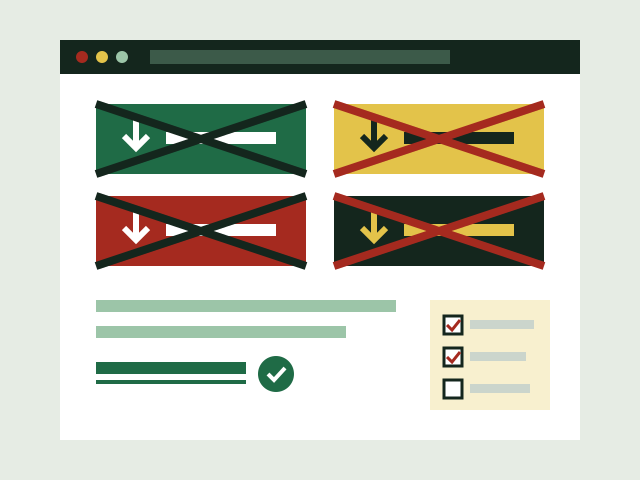
Pages that host files, especially free-download and file-sharing sites, are often paid for by advertising. Some of those adverts are drawn as large "Download" or "Start" buttons placed around the real link. The real link may be small, plain text further down the page. Clicking the wrong one can start a different download or open another site.
The FTC's advice for this situation is to avoid such sites altogether: do not use unfamiliar websites to download free stuff like music, films, shows or games, and do not download content through peer-to-peer file-sharing. If you are on a page and cannot tell which button is real, that alone is a sign you are in the wrong place. Leave and find the official source.
A file that is not what it says
A download that should be a document or a video but turns out to be a program fits CISA's description of a Trojan horse: something that looks legitimate while hiding a harmful program. Apple notes that Gatekeeper asks for approval before opening downloaded software for the first time so that you are not tricked into running a program you thought was a data file. Do not approve it.
Installers that bring extras
Some installers offer to install other programs along with the one you chose: a browser toolbar, a different search engine, a "system optimiser" or a trial of something else. Microsoft has a name for this category. Its documentation describes potentially unwanted applications, or PUA: software that can slow a machine down, show unexpected adverts or install other software you did not expect. Microsoft's examples include advertising software that shows adverts or inserts them into web pages, and bundling software that offers to install other software not signed by the same company. Microsoft notes that PUA is not classed as a virus or malware, but says it can raise the risk of a real infection and make one harder to spot.
On Android, Google documents that Play Protect warns about apps that break its Unwanted Software Policy by hiding or misrepresenting important information.
The defences are partly built in. Microsoft documents a setting in its Edge browser, Block potentially unwanted apps, which it describes as off by default and easy to turn on under Privacy, search, and services; with it on, SmartScreen blocks downloads and web addresses associated with PUA. The rest is attention. When you run an installer:
- read every screen rather than pressing Next repeatedly;
- choose a custom or advanced install if offered, which usually shows what will be installed;
- untick any extra program, toolbar or change to your browser that you did not ask for;
- if the installer will not continue without accepting an extra, cancel it and look for the program in an official store or package manager instead.
Those four steps are this site's practical reading of the sources above rather than a list any one of them sets out. Software from an official store or a package manager avoids the problem almost entirely, because you install packages, not a third party's installer.
Fake warnings and real ones
Some pages skip the download and go straight for your money. The FTC describes tech support scams that begin with a fake pop-up warning, made to look as if it comes from a well-known company, claiming the computer has a virus and urging you to call a phone number. If you call, the scammer asks for remote access, pretends to scan the computer and charges you to fix a problem that does not exist. The FTC's rule: real security pop-up warnings and messages never ask you to call a phone number, and legitimate tech companies will not contact you to say there is a problem with your computer.
Real warnings come from the operating system or browser itself, not from a web page. Examples documented by the vendors:
- Windows: Microsoft Defender SmartScreen shows a warning when a downloaded file matches a list of reported malicious software, or is not on its list of files that are well known and frequently downloaded.
- Mac: Gatekeeper alerts say when Apple cannot check an app for malicious software, when the developer cannot be verified, or when an app has been modified or damaged. If macOS detects known malware it says so and moves the item to the Trash.
- Android: Google Play Protect sends a notification when it finds a potentially harmful app, and may disable or remove it.
A real warning is worth taking seriously, and none of them asks you to phone anyone. A "warning" with a phone number in it is the scam.
Example: two buttons and a warning
This is an invented example and describes no real person or site. Someone searches for a free video player and clicks the first result, which opens a page with three large green Download buttons. The file that arrives is named like the player but is much smaller than expected, and Windows shows a SmartScreen warning that it is not commonly downloaded. They delete the file without running it, empty the browser's download list, and find the player's real site from its documentation instead. Because they never ran the file, there is nothing to clean up.
Signs something came along
The FTC lists signs that a device may have picked up malware, several of which are typical of adware and unwanted extras:
- the browser's home page changes, or it redirects you to sites you did not mean to visit;
- new browser toolbars or add-on programs appear;
- you see many pop-up adverts, including on sites where you would not expect them;
- the computer slows down, freezes or crashes.
If you see these after an install, the guide on what to do after a bad download sets out the steps in order.
Habits that avoid all of it
- Start every download from an official store, a package manager or the maker's site reached by typing its address.
- Never click an advert to download software.
- Leave any page where you cannot tell which button is the real one.
- Read every installer screen and refuse extras.
- Treat operating system warnings as real; treat any warning with a phone number as a scam.
Next: Keeping software updated, and what to do when updates stop