
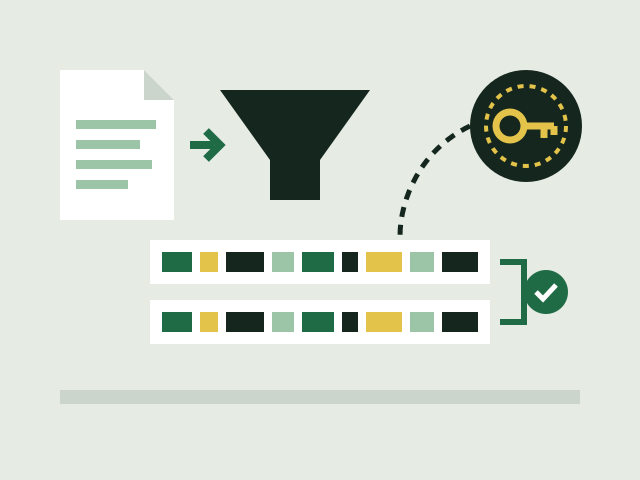
What a hash is
A hash function takes a file of any size and produces a short, fixed-length string of characters from it, called a hash, digest or checksum. NIST's Secure Hash Standard, FIPS 180-4, describes the purpose plainly: the digests are used to detect whether a message has been changed since the digest was made. A "message" here can be any file, including a program installer.
Microsoft's documentation for its Get-FileHash command explains the property that makes this useful. Renaming a file does not change its hash, but changing even a single character of its contents does. If two files have the same hash from a secure algorithm, their contents are the same.
Not every hash algorithm is still secure. Microsoft's same page notes that MD5 and SHA-1 are no longer considered secure against attack. NIST announced in December 2022 that SHA-1 should be phased out by 31 December 2030, because modern computers can create different data with the same SHA-1 hash, a so-called collision attack, and recommends the SHA-2 and SHA-3 families instead. SHA-256, a member of the SHA-2 family, is the one you will meet most often on download pages.
What a checksum proves, and what it does not
A publisher who lists a SHA-256 checksum next to a download is telling you what the hash of the genuine file should be. If you compute the hash of the file you received and it matches, you know your copy is identical to the one they described.
The Debian project, which publishes checksum files for its installation images, sets out the two separate things this can tell you. First, the checksum shows the image was not corrupted during the download. Second, and only when combined with a signature, it shows the image is the one Debian created and released and has not been tampered with.
The reason for that second condition is simple. If someone can replace the file on a download page, they may be able to replace the checksum printed beside it as well. A matching checksum from the same page that served a fake file proves nothing. A checksum protects you against tampering only when you can trust where the checksum itself came from.
The rule in one line
A checksum proves the file matches a published value. A signature proves who published that value.
What a signature adds
NIST defines a digital signature as the result of a cryptographic transformation of data that, when properly implemented, lets someone verify where the data came from (origin authentication), that it has not changed (data integrity), and that the signer cannot later deny signing it.
The publisher signs with a private key that only they hold. Anyone with the matching public key can check the signature. If the file or the signed checksum list is changed in any way, the check fails. That moves the question of trust from "is this web page genuine?" to "is this the publisher's real public key?", which is easier to answer, because the key can be obtained once from a trusted place and reused.
Many Linux distributions sign the checksum list rather than each image. Ubuntu's tutorial describes two files published beside every image: SHA256SUMS, which lists the checksums, and SHA256SUMS.gpg, which is the signature for that list. Debian publishes similar signed files, for example SHA512SUMS with SHA512SUMS.sign.
Checking a hash on Windows
Windows includes PowerShell, and Microsoft documents a command in it called Get-FileHash. By default it uses the SHA-256 algorithm. Open PowerShell, change to the folder holding the download, and run:
Get-FileHash .\name-of-download.exePowerShell prints the algorithm, the hash and the file path. Compare the hash with the value on the publisher's page. If the publisher lists a different algorithm, name it with the -Algorithm option, for example -Algorithm SHA512. To let PowerShell do the comparison for you, paste the published value in place of the placeholder below. Microsoft's own documentation uses the same comparison in one of its examples, and it prints True when the two values match:
(Get-FileHash .\name-of-download.exe).Hash -eq "PUBLISHED-SHA256-VALUE"Example: comparing two values
This is an invented example and the values are shortened placeholders, not real checksums. A download page lists 9F2C...D41A. Get-FileHash prints 9F2C...D41B. The two values share their first and most of their last characters but differ at the very end. That is a mismatch: the file is not the one the publisher described. Delete it and download again from the publisher's own site. Comparing only the first few characters would have missed it.
Checking a hash and signature on Linux
Ubuntu's tutorial on verifying a download uses two standard tools: sha256sum for the checksum and gpg (GnuPG) for the signature. It describes them as installed by default on Ubuntu and standard on most Linux systems. The steps, in order:
- Download the image together with the SHA256SUMS and SHA256SUMS.gpg files, and keep them in one folder.
- Check the signature on the checksum list:
If GnuPG reports that it has no public key, the tutorial shows how to fetch the signing keys from Ubuntu's key server by their ID and then compare the key fingerprints with the ones it publishes.gpg --keyid-format long --verify SHA256SUMS.gpg SHA256SUMS - Look for "Good signature". The tutorial explains that a warning that the key "is not certified with a trusted signature" only means you have not personally marked the key as trusted; a signature reported as BAD means the file does not match and must not be used.
- Check the image against the now-trusted checksum list:
The output should name your image followed by OK. Any other result means the image does not match, because it was altered or downloaded incorrectly, and the tutorial says to download a fresh copy from a known good source.sha256sum -c SHA256SUMS 2>&1 | grep OK
Debian's verification page describes the same approach for its own images: use sha256sum or sha512sum to match the checksum, and an OpenPGP tool such as GnuPG to check the signature file against Debian's published signing keys.
Checks your system already does
You do not have to do this by hand for everything. Several systems check signatures automatically:
- macOS. Apple's documentation says Gatekeeper checks that software from outside the App Store is from an identified developer, has been notarized by Apple and has not been altered.
- Debian-based Linux. The Debian Administrator's Handbook explains that APT checks a signed list of hashes before it installs packages from the distribution's mirrors.
- Windows. Microsoft documents that SmartScreen's reputation checks look at downloaded programs and the digital signature used to sign them, and warn when a file has no established reputation.
The manual check matters most for large downloads from a vendor's site, such as an operating system image or a program not offered through any store or package manager.
Mistakes that make the check worthless
- Taking the checksum from the same untrusted page as the file. If you reached a look-alike site, its checksum will match its file.
- Comparing only a few characters. Compare the whole value, or let the computer compare it, as in the PowerShell example above.
- Relying on MD5 or SHA-1. Microsoft and NIST both describe these as no longer secure against attack. Use a SHA-256 or SHA-512 value where the publisher offers one.
- Clicking past a failed signature. A BAD signature, or a Gatekeeper alert that an app has been modified or damaged, is the check doing its job.
- Trusting a key from the same place as the file. Get the publisher's public key, or its fingerprint, from a source you already trust.
Next: Open source licences: the basics for people who just want to use the software